PDF Underlay in DraftSight Professional


If you’ve been working your way through the menus in DraftSight Professional, you’ve probably come across the PDF Underlay option. You may be wondering just what that is, so I’ll try to explain it to you.
Many out there are familiar with Reference Drawings and how they work. Well, PDF Underlay works in a very similar way, except instead of attaching DWG files to drawings, you are attaching PDF files.
Now, why might you do that? Well, sometimes, for one reason or another, DWG files are just not available. Other times it might not make sense to go to the effort of cleaning up drawings and setting up Reference Drawings for a quick sketch.
So, how do you use PDF Underlay? It’s quite easy actually. You can either select it from the Menu, or you can type AttachPDF from the Command Line.
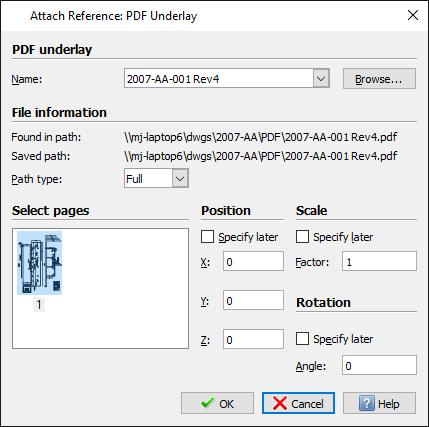
Once you select your PDF file, the Attach Reference PDF Underlay dialogue box appears. In this dialogue box, you can select how many pages of the pdf are attached, select its position, scale and its rotation.
Just like with a Reference Drawing, you can manage the layers in the attached PDF (if the PDF was created with layers!), From the menu bar, click on Format -> PDF Layer. You’ll then be asked to Specify a PDF underlay. Click on the PDF Underlay you’d like to manage and the layer dialogue box will appear.
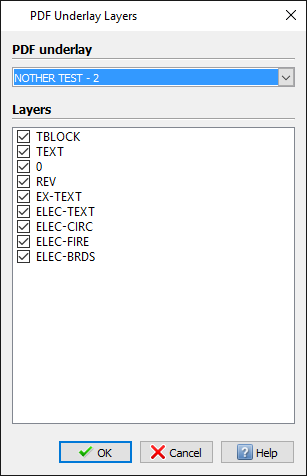
Just select the layers you want to turn on or off and click OK. It’s as simple as that!
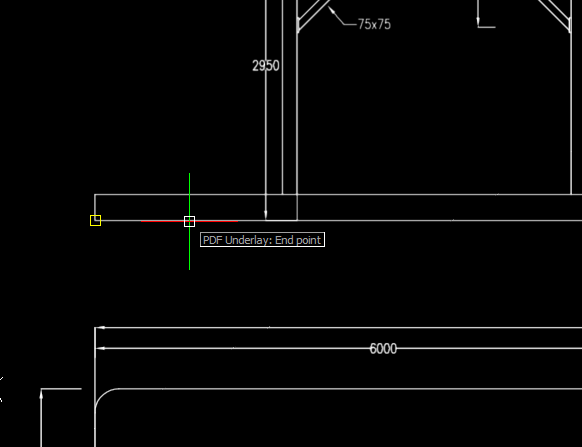
What else can you do with a PDF Underlay I hear you ask, well you can obviously scale it up to suit your needs. You can also snap to it just like you would snap to a standard Reference Drawing or Block. That means no more guessing when trying to draw accurately, just snap directly to the point you want to!
Sometimes, when you attach a PDF Underlay, you might not want to show the whole PDF in your drawing. Again, just like with Reference Drawings, you can clip the PDF Underlay. To do this, select Modify -> Clip -> PDF Underlay from the menu bar or type ClipPDF from the Command Prompt.
You then can specify the PDF Underlay you want to clip and you can then apply a clipping boundary. To do this, just follow the onscreen prompts in the Command Prompt area.
Managing your PDF Underlays in DraftSight Professional is just like managing Reference Drawings. Just start Reference Manager from the menu bar ( Tools -> Reference Manager ) or type References from the Command Prompt.
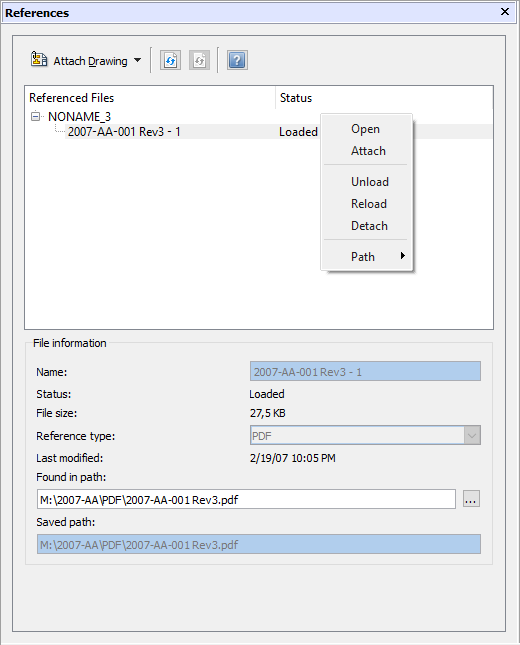
From within Reference Manager, you can Attach, Detach, Edit the Path and so on of PDF Underlays in your drawing. It’s a nice, simple clean way of managing your external references.
That’s a brief summary of PDF Underlays in DraftSight Professional. For more information on the commands used and indeed other commands available when working with PDFs in DraftSight Professional, check out the built in Help File by clicking on Help in the menu bar.
Discover more about DraftSight and how you can boost your productivity with DraftSight Professional, a powerful 2D design solution for professionals that includes productivity tools and an API.
http://www.draftsightprofessional.com/professionalfeatures

Latest posts by DraftSight (see all)
- Shanghai International Circuit: The Geometry Behind the Chinese Grand Prix - March 13, 2026
- Engineering Precision: Melbourne’s Grand Prix Circuit with DraftSight - March 6, 2026
- When DraftSight Needs a Fresh Start: How to Reset to Default Settings - February 4, 2026