When DraftSight Needs a Fresh Start: How to Reset to Default Settings


When DraftSight Needs a Fresh Start: How to Reset to Default Settings
Every CAD team has been there.
A workstation starts behaving strangely. Menus look different from what was expected. Commands do not respond the way they should. Maybe a power user customized everything before leaving the company, or a third-party add-in changed more than intended. Whatever the cause, the result is the same: DraftSight no longer feels like DraftSight.
The good news is that getting back to a clean, factory-style setup does not require reinstalling the software. In most cases, a simple reset of user settings is all it takes.
Why Reset to Default Settings?
DraftSight stores user preferences, profiles, and customizations locally. Over time, those files can become cluttered or corrupted, especially in shared environments or after multiple configuration changes. Resetting the settings tells DraftSight to rebuild everything from scratch using its default configuration.
Your existing customizations are not deleted. They are simply set aside, providing a safe fallback if you want to recover specific settings later.
Before You Begin
Very important: Make sure DraftSight is completely closed. The application needs to regenerate its settings the next time it starts, and that cannot happen if it is still running in the background.
Resetting DraftSight on Windows®
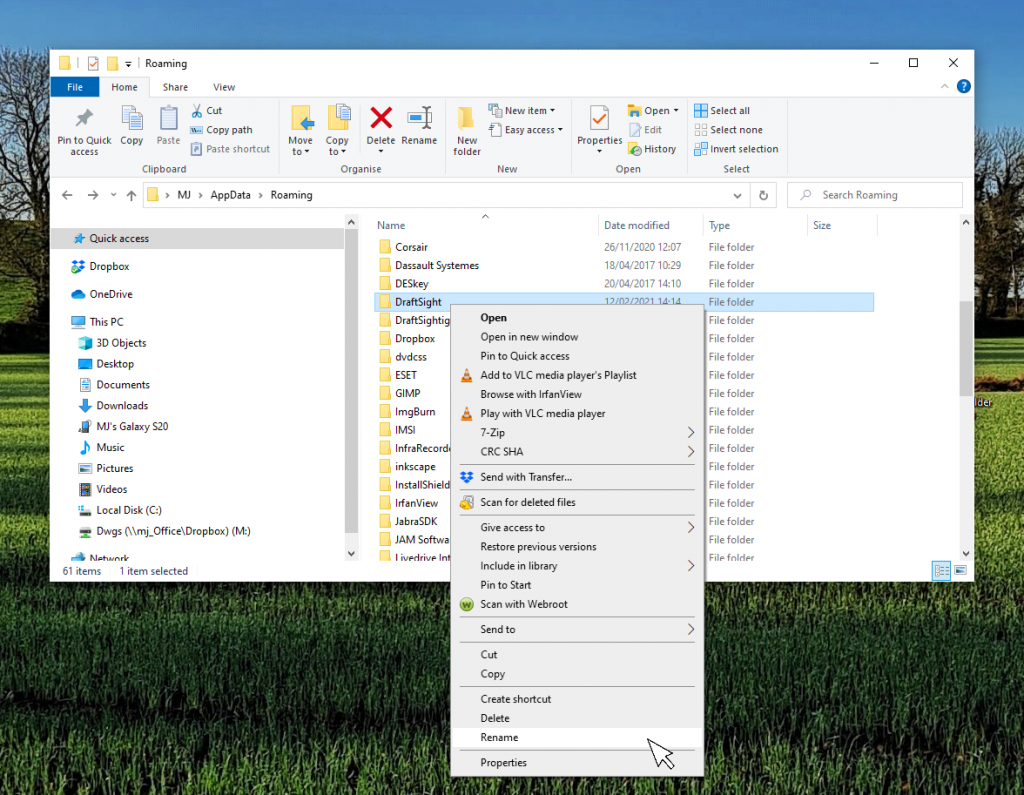
Open File Explorer.
Navigate to:
C:\Users\[username]\AppData\Roaming
If you do not see the AppData folder, enable hidden items from the View menu in File Explorer.
Locate the DraftSight folder.
Right-click the folder and rename it something like DraftSight_OLD.
Restart DraftSight.
When DraftSight launches, it automatically creates a new DraftSight folder with default settings. You will now see two folders in the Roaming directory: the new one and the renamed backup.
Is Your Profile the Problem?
Sometimes the issue is not DraftSight itself, but the user profile behind it. Profile problems tend to show up as layout changes, missing toolbars, shortcuts that no longer work, or settings that refuse to stick. The software opens, but it does not behave consistently.
If DraftSight works correctly for other users or works normally on another workstation using the same license, that is a strong sign the issue is tied to a local user profile.
In those cases, resetting just the profile folder is a good first step before resetting all user settings. In this case:
Close DraftSight.
Navigate to:
C:\Users\[username]\AppData\Roaming\DraftSight\<version number>
Right-click the Profiles folder and rename it Profiles-OLD.
Restart DraftSight and check whether the issue is resolved.
If problems continue, renaming the main DraftSight folder as described earlier usually solves them.
Resetting DraftSight on macOS
Close DraftSight.
Navigate to:
/Users/[USERNAME]/Library/Preferences/
Rename the DraftSight folder to DraftSight_OLD.
Restart DraftSight.
Just as on Windows, DraftSight automatically rebuilds its default settings.
When a Registry Reset Is Necessary (Windows Only)
In some cases, resetting folders alone is not enough. DraftSight relies heavily on the Windows Registry to store user profiles, customized settings, installation paths, and licensing data. When those registry entries become corrupted, outdated, or misconfigured, DraftSight may continue to show errors even after a standard reset or reinstall. This is why removing specific DraftSight registry keys is sometimes needed to fully refresh the application.
Why Deleting DraftSight Registry Keys Helps
Removing corrupted settings: Unexpected shutdowns, power outages, or software conflicts can damage registry entries over time. When those entries load at startup, DraftSight may behave unpredictably. Deleting them forces the application to rebuild clean default values the next time it launches.
Fixing failed installations or updates: If a previous installation or update failed, leftover registry keys can block future installations or cause version conflicts. Removing these entries ensures the system returns to a true clean state.
Resetting broken customizations: User interface issues such as missing ribbons, incorrect toolbars, or shortcuts that refuse to save are often tied to registry values. Removing the user-specific registry path HKEY_CURRENT_USER\Software\Dassault Systemes\DraftSight is often faster and more effective than repairing the software.
Resolving licensing or activation problems: License and activation data is also stored in the registry. In some cases, removing DraftSight entries under HKEY_LOCAL_MACHINE\Software\Dassault Systemes can help resolve activation issues that persist after reinstalling.
Correcting file association problems: If double-clicking a DWG file opens the wrong application or the wrong version of DraftSight, outdated registry entries related to file associations may be the cause. Cleaning these entries allows Windows to rebuild the correct associations.
Important Safety Note
Editing the Windows Registry carries risk if done incorrectly. Take these steps before making any changes:
- Open Registry Editor
- Select File > Export
- Save a backup of the specific keys you plan to modify, or export the entire registry
This backup allows you to restore the system if something goes wrong. Registry cleanup should be considered an advanced troubleshooting step. When used carefully, it can resolve problems that folder resets and reinstalls cannot.
A Clean Start
Once DraftSight restarts, you are working with a clean configuration. If everything behaves as expected, you can continue working. If you need to recover specific settings, you can copy individual files from the renamed folder into the new one.
Resetting DraftSight to default settings is a quick fix, but it solves a wide range of problems. And in many cases, it saves far more time than troubleshooting individual settings one by one.
Give DraftSight a try with our 30-day free trial.
Learn more about DraftSight here.

Latest posts by DraftSight (see all)
- When DraftSight Needs a Fresh Start: How to Reset to Default Settings - February 4, 2026
- DraftSight Migration Guide Blog - February 2, 2026
- DWG Rescue: Bringing Problem DWG Files Back into Working Order - December 12, 2025