Printing in DraftSight – Part 3


Printing using Viewports in Sheet Space can be a bit confusing at first. You may be thinking what is a viewport? Can I have multiple viewports in a drawing? How do I set a scale in a viewport?
What is a viewport? Well, a viewport can best be described as a window on to the Model Space world. You can move that window around to see different areas, make that window bigger to see more of your drawing or move the windows closer to see more detail. For a bit more information, you can read this previous blog entitled DraftSight, Model Space, Sheet Space and Viewports
Can I have multiple viewports in a drawing? Yes you can indeed and each viewport can be at a different scale. To insert a viewport in a drawing, make sure you are in Sheet Space and click on Sheet in the Menu Ribbon. Then select Single Viewport.
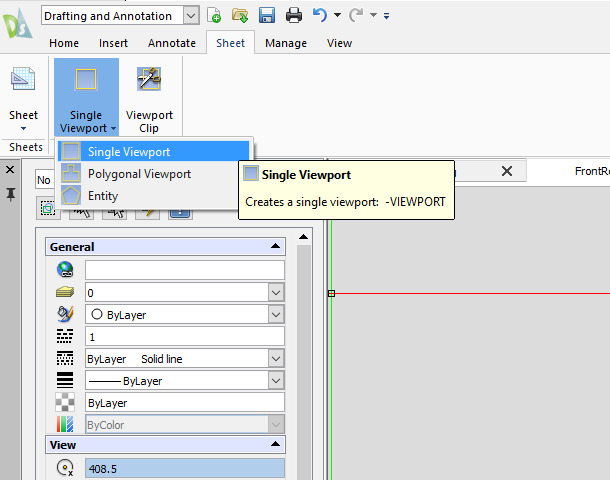
You can then specify the location of your viewport in Sheet Space. Click to specify the Start Corner, then click to specify the Second Corner. A viewport will be created and you will see your drawing in Model Space.
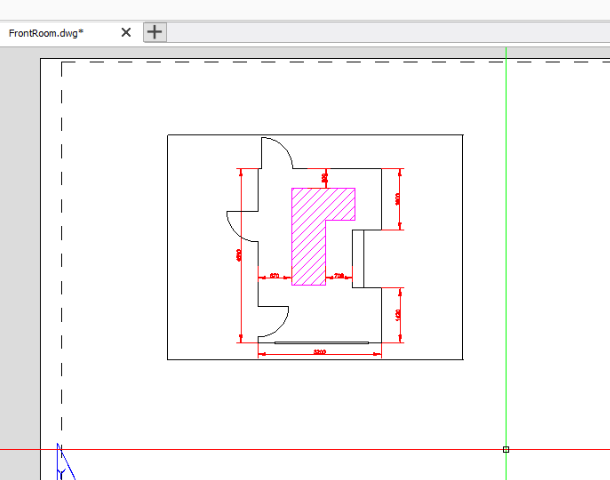
How do I set a scale in a viewport? This is where it gets a little complicated. You’ve created your viewport, but the drawing displayed is not to scale. Double click in the viewport to activate it. You’ll notice that the border of the viewport goes bold.
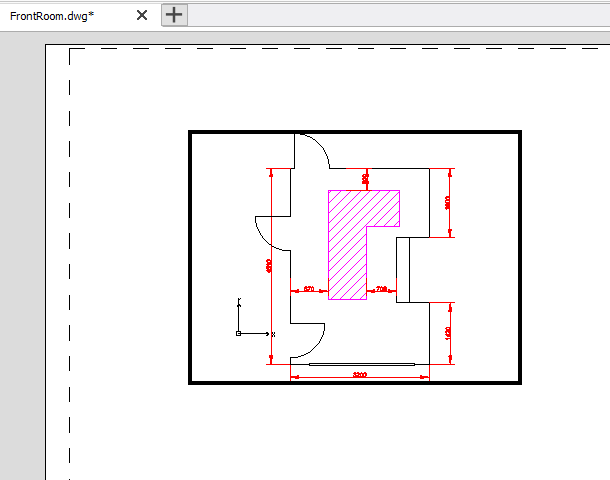
To set a viewport to scale, you use the Zoom command. So, at the command line, type Zoom. Now you need to decide what scale you’d like your viewport to be. In our case, we’ll select a scale of 1:20. So, once you have started the zoom command, enter 1/20xp and hit enter (make sure and put xp after your scale, if you don’t the command will not work correctly). After hitting enter, you’ll see the scale of the viewport change to your selected scale.
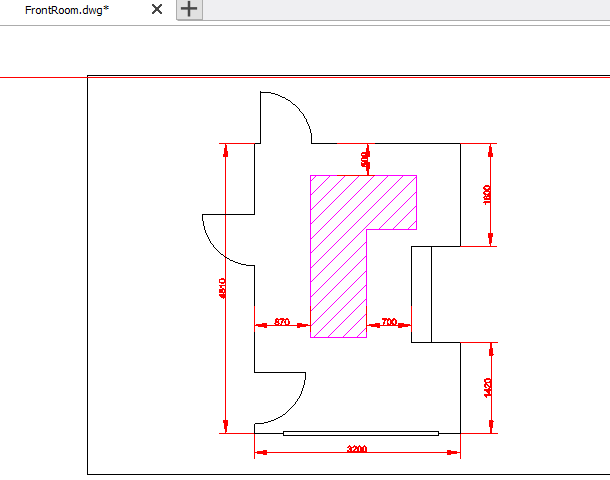
To set the viewport, just double click outside of it, you’ll notice the border of the viewport returns to normal. Once you have your viewport(s) set to scale, you can then print your drawings just like you normally would.
So that’s a quick guide to creating a viewport in Sheet Space and setting its scale. For more information on working with viewports, open the DraftSight Help file and search for viewports, you’ll find a lot of very helpful information there.
Learn more about DraftSight and how to start a free 30-day trial here.

Latest posts by DraftSight (see all)
- Shanghai International Circuit: The Geometry Behind the Chinese Grand Prix - March 13, 2026
- Engineering Precision: Melbourne’s Grand Prix Circuit with DraftSight - March 6, 2026
- When DraftSight Needs a Fresh Start: How to Reset to Default Settings - February 4, 2026